
Add variants
Build size, length and more into one style, each with its own price
Variants are what make your menu exact. They let one style cover the real differences in the work, like size, length or hair type, and they build the final price from the client's choices. This is the heart of your structured menu.
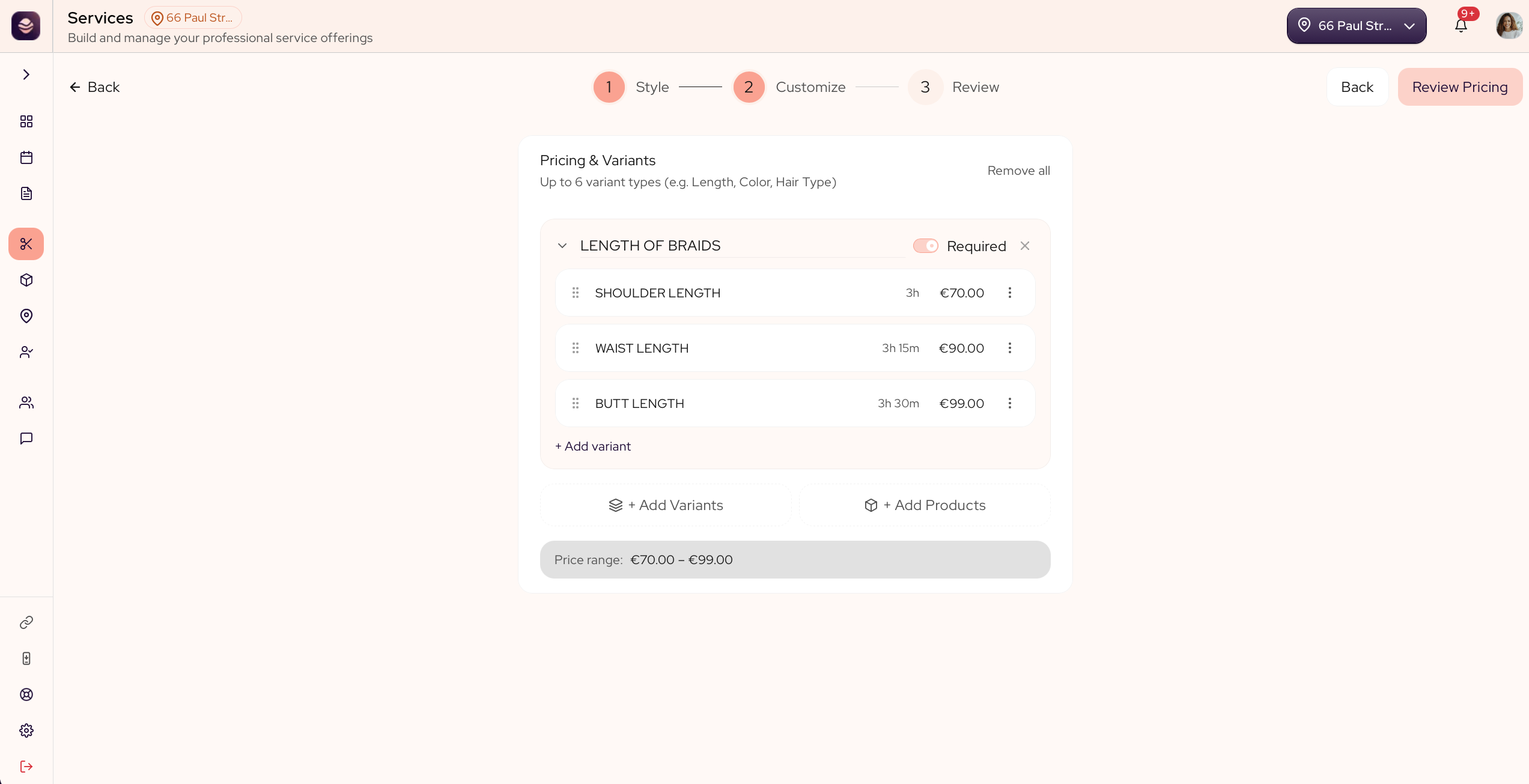
How variants work
A variant is a question with choices, and each choice adjusts the price and the time.
- A variant is the question, like Size, Length or Hair type.
- Its choices are the answers, like Small, Medium and Large.
- Every choice adds its own price and time on top of the style's base.
You can add more than one variant to a style, up to six. So a braid style could ask for Length, then Hair type, then Size, and the client answers each one. The price they see is the base price plus every choice they make.
Add variants to a style
- Open the style you want to build out.
- Go to its Pricing & Variants.
- Add a variant and give it a name, like Size.
- Add its choices, like Small, Medium and Large.
- Set the price and the time each choice adds.
- Add another variant if you need one, up to six in all.
- Save your changes.
When a client books, they move through your variants one by one, and the exact price builds as they choose.
Updated 21 days ago
Did this page help you?