
APPOINTMENTS
Your calendar, and everything you can do from it.
Your appointments calendar is where the day takes shape. Every booking lands here, whether a client booked through your link or your team added it. From here you create, move, charge and close out appointments.
In this article
- Switch between day, week and list
- Move through dates
- Read the calendar
- What you can do from here
Switch between day, week and list
Use the tabs at the top to change the view.
- Day shows one day in detail, with your whole team side by side.
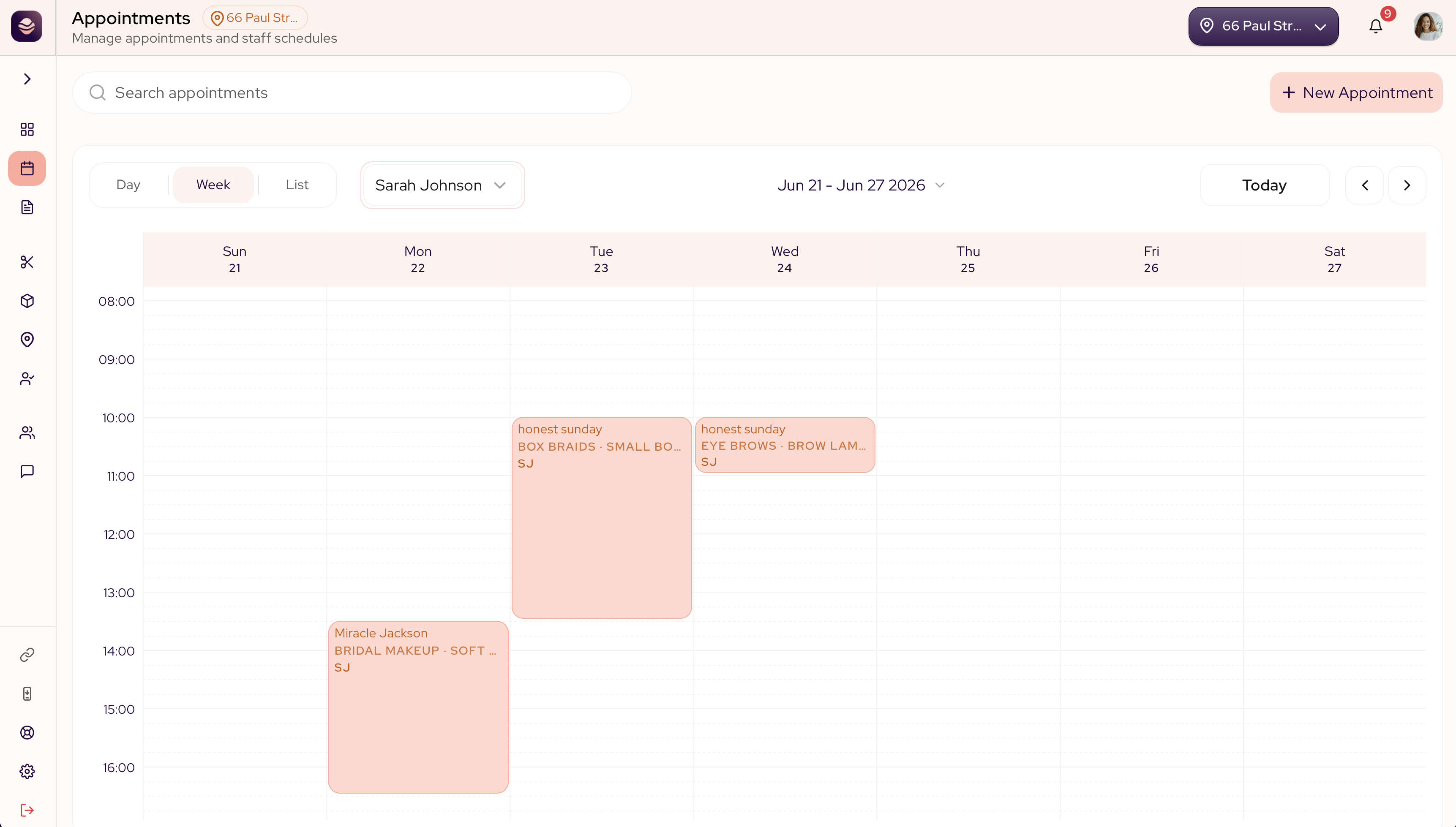
- Week shows one team member's full week. Use the staff dropdown to choose whose week you see.
- List shows your bookings as a simple list you can scan.
Move through dates
Use the date controls at the top to step forward and back or jump to today. Pick a date to go straight to it.
Read the calendar
Each block on the calendar is one appointment. It shows the client, the service and the stylist, and its colour follows its status, so you can spot arrivals, no-shows and finished visits at a glance.
What you can do from here
- Select New Appointment to book a client in.
- Use Block Time to hold a slot for a break or admin.
- Open any appointment to reschedule it, change its status, charge it or cancel it.
In this section
Updated 3 months ago
Did this page help you?