
Reset Data
Clear your test data before you go live
Reset Data clears the bookings, sales and other records you added while trying SalonGrid, so you can start your real records with a clean slate.
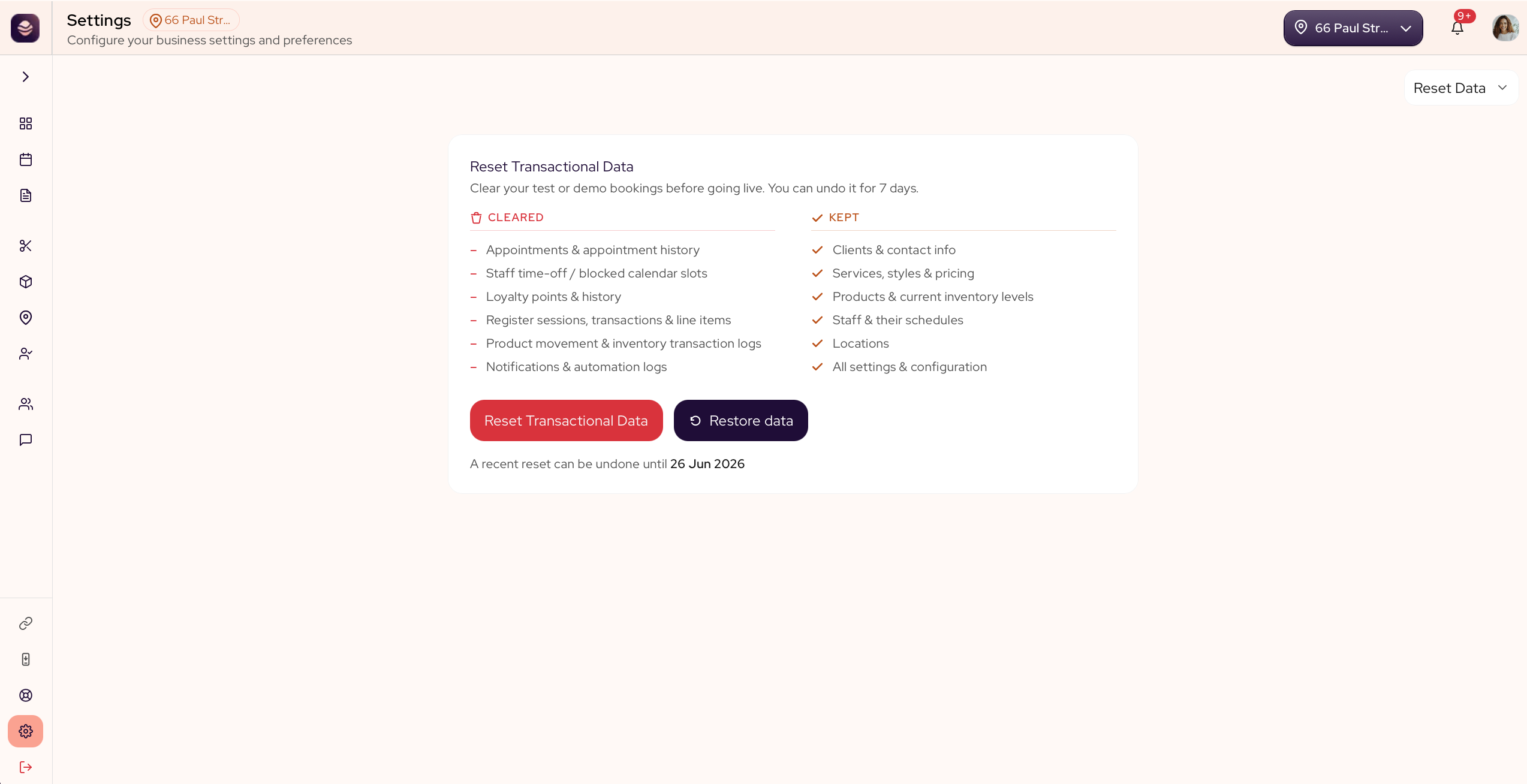
What a reset clears
A reset clears your appointments, your register records, your loyalty activity and your transaction history. It does not touch your client list, your services or your settings.
Reset your data
- Go to Settings and open Reset Data.
- Choose what you want to clear.
- Type your salon's exact business name to confirm.
- Confirm the reset.
Only an owner can reset data.
Undo a reset
If you reset by mistake, you have 7 days to undo it. SalonGrid keeps an archive of everything it cleared, so you can put it back.
- Go to Settings and open Reset Data.
- Find the reset in your recent resets.
- Restore it.
Updated 21 days ago
Did this page help you?