
Booking policy
Write the policies your clients see when they book
Your booking policies are the rules and notes clients see when they book, like how you handle payment, cancellations, deposits and pets. You write each one in your own words, and they show on your booking page.
In this article
- Add a policy
- Use your own category
- Format your text
- Change the order
- Edit or remove a policy
Add a policy
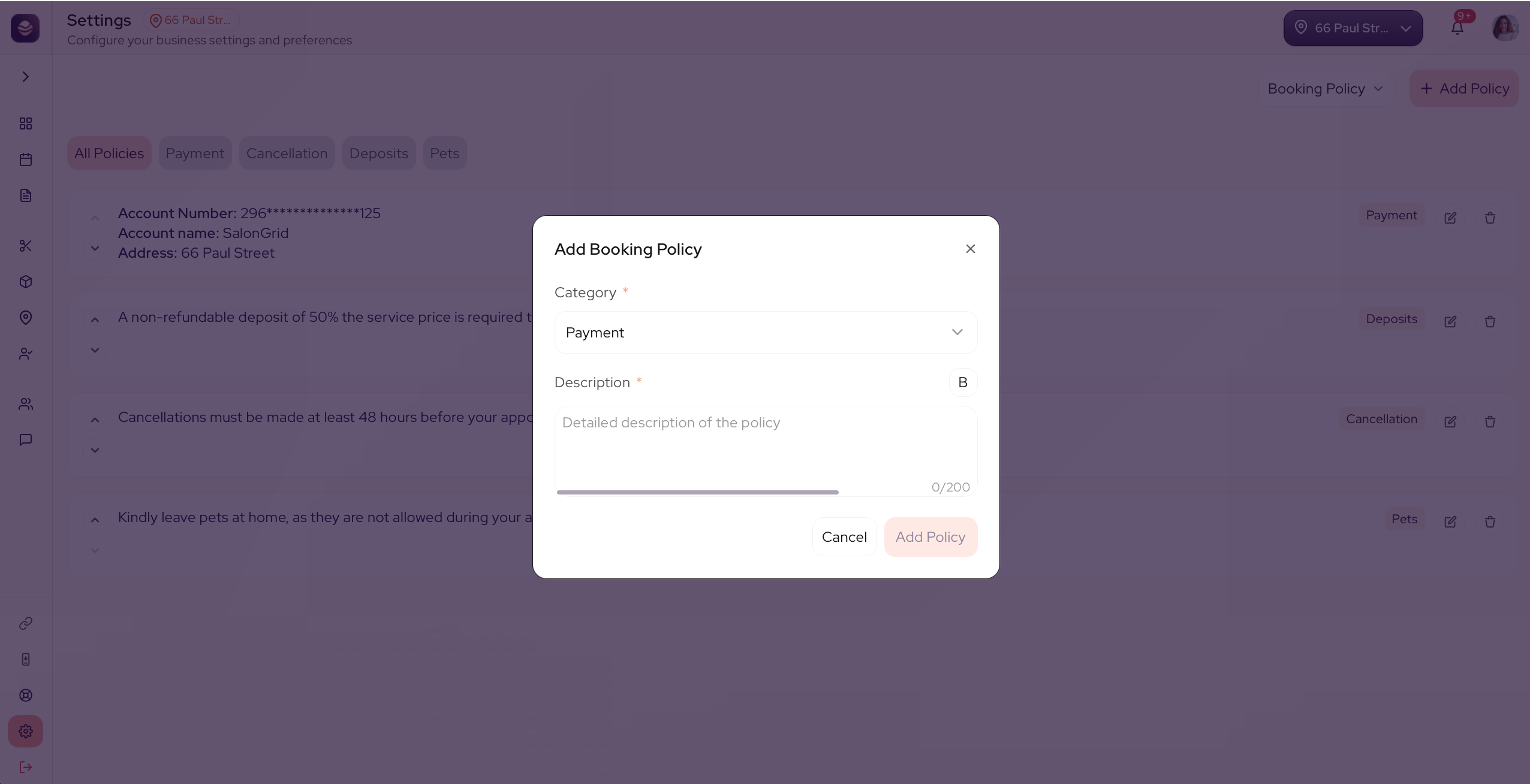
- Go to Settings and open Booking Policy.
- Select Add Policy.
- Choose a Category, like Payment, Cancellation, Deposits or Pets.
- Write your policy in the Description, up to 200 characters.
- Select Add Policy to save it.
Your policy now shows on your booking page, under its category.
Use your own category
The four categories cover the basics, but you can add your own for anything else.
- In the Category list, select + Add custom category.
- Type a name for it, like Lateness or Children.
- Use it on this policy and any future ones.
Format your text
- Select Bold to make a word or a line stand out.
- Press Enter to start a new line, so a longer policy stays easy to read.
Change the order
Use the up and down arrows beside each policy to move it. The order you set here is the order clients see on your booking page, so put your most important policies first.
Edit or remove a policy
Open a policy to change its wording or its category, or remove it when it no longer applies. Use the category tabs at the top to filter your list while you work.
Updated 3 months ago