
Manage locations
Edit, pause, switch or remove a location
As your salon grows or changes, keep each location current so clients always see the right details. You can edit a location, turn it off for a while, switch between them or remove one.
In this article
- Edit a location
- Switch between locations
- Turn a location on or off
- Remove a location
Edit a location
- Go to Locations.
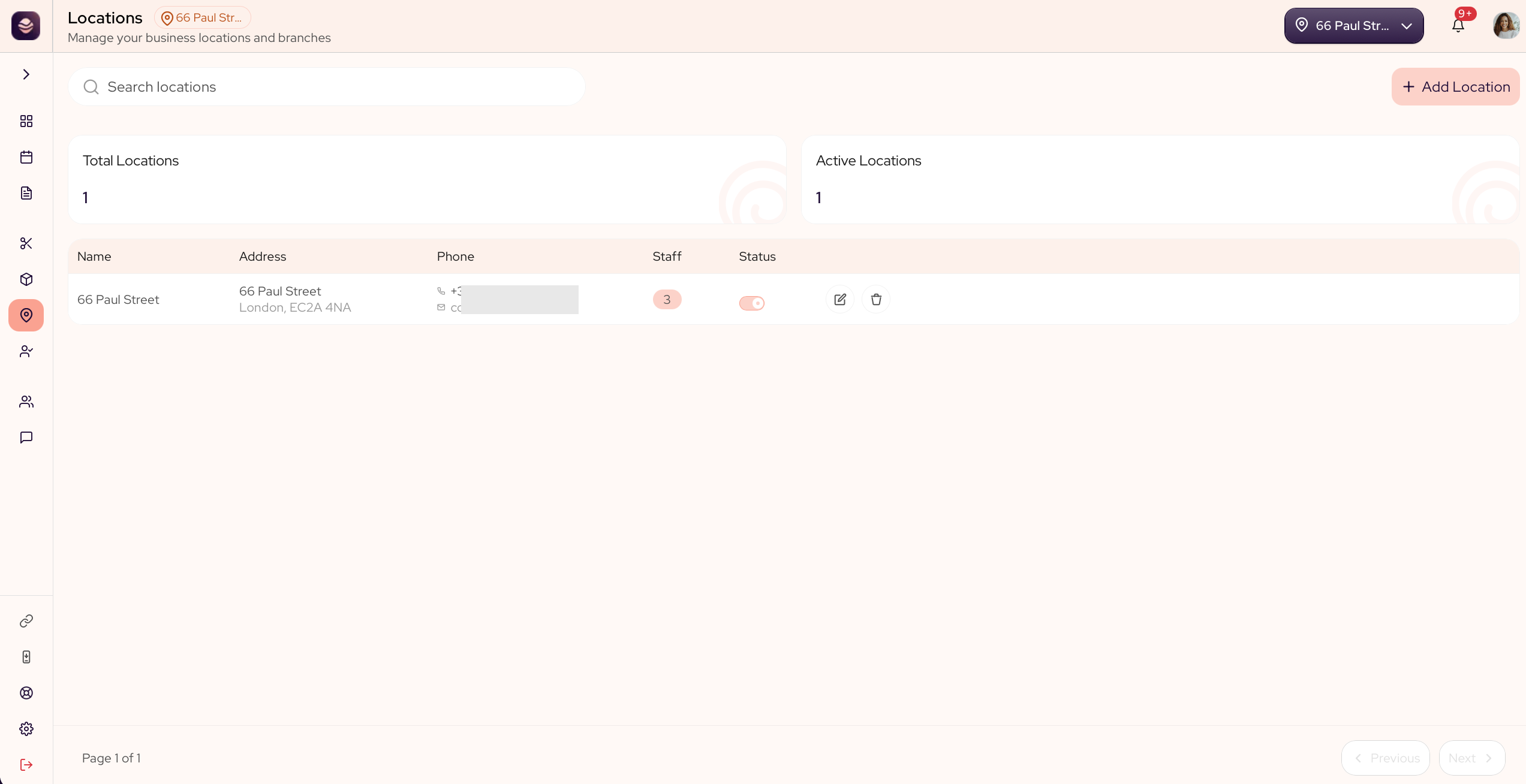
- Select Edit on the location you want to change.
- This reopens its wizard, with the same Location Profile and Business Hours steps you set when you added it.
- Update its details, hours or the services it offers.
- Save your changes.
Switch between locations
At the top of your dashboard, pick a location to see and manage that venue on its own. Your appointments, team and numbers then show for that one location.
Turn a location on or off
Each location has an Active switch on the list. Use it when a venue is closed but coming back, like a refit or a seasonal break.
- On means clients can book there as normal.
- Off means the location is paused. Clients can no longer book it, but its details, team and history stay in place.
Turn it back on when you reopen, and nothing is lost.
Tip: Closing for a holiday or a refit? Turn the location off rather than deleting it, so you keep its booking page and details for when you reopen.
Remove a location
Removing takes a location off your account for good.
- Go to Locations.
- Select Delete on the location you want to remove.
- Confirm.
Updated 21 days ago
Did this page help you?