
Reschedule an appointment
Move a booking to a new time in seconds.
Plans change. When a client needs a different time, you can move their appointment without losing any of its detail.
In this article
- Drag it to a new time
- Open it and pick a new time
- Tell the client, or not
Drag it to a new time
The quickest way to move a booking on today's calendar. Switch to Day view, then:
- Pick up the appointment. With a mouse, press and drag. On a phone or tablet, press and hold for a moment until it lifts.
- Drag it to the new time. You can also drop it in another stylist's column to hand the booking over.
- Let go, then confirm the new time.
Before the move is saved you get a quick check showing the old time and the new one. Choose Cancel and the appointment goes back where it was, so a drop in the wrong place costs you nothing.
SalonGrid will not let the move go through if the stylist is already booked then or the time has already passed. It tells you which, and you can drag somewhere else.
A move you make by dragging follows the notification setting already saved on that appointment. Open the appointment instead when you want to decide whether the client hears about this one.
Open it and pick a new time
Use this to move a booking to another day, or to change other details at the same time.
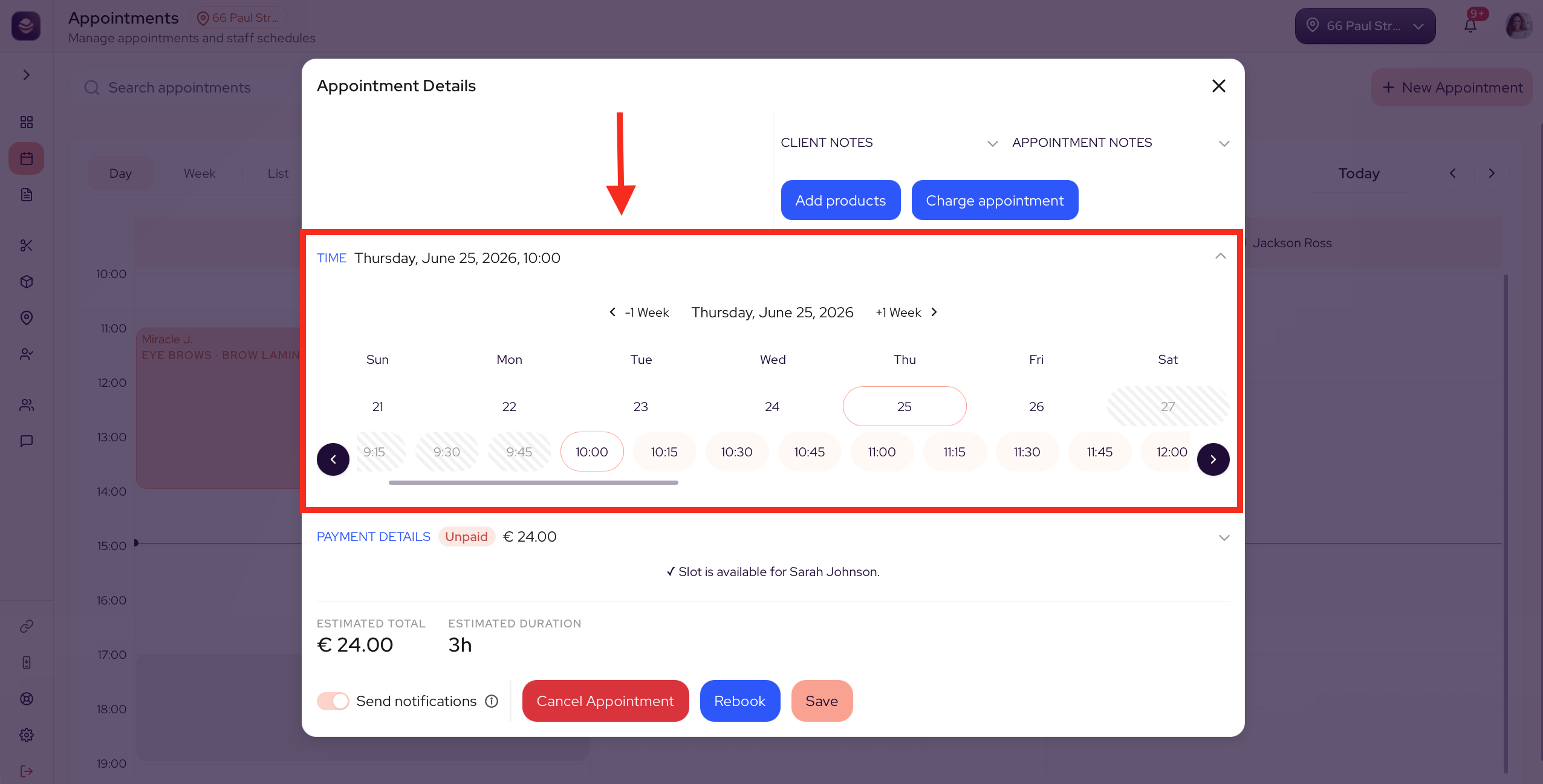
- On the calendar, select the appointment you want to move.
- Open the date and time, then pick the new slot.
- Save your change.
The appointment moves to its new time. If Send notifications is on, the client gets an email about the change.
Note: Everything else on the appointment stays the same. Only the time changes.
Tell the client, or not
When you open an appointment, the footer has a Send notifications switch, and it is on to start. It controls whether the client hears about the change you are saving.
- On emails the client about the change.
- Off saves your change quietly, with no email to the client.
Turn it off for a tidy-up the client does not need to know about, like fixing a typo, moving an appointment a few minutes or swapping the stylist behind the scenes. Leave it on when the client needs to know the new time.
Tip: The same switch is there for any change you save on an appointment, not only a reschedule. Check it before you save when a change should stay quiet.
Updated about 7 hours ago