
Taxes
Add the right tax to your sales, your way
If your salon charges tax, you set it up once and SalonGrid applies it to your sales. You can add more than one tax, name each one and choose how it sits on your prices.
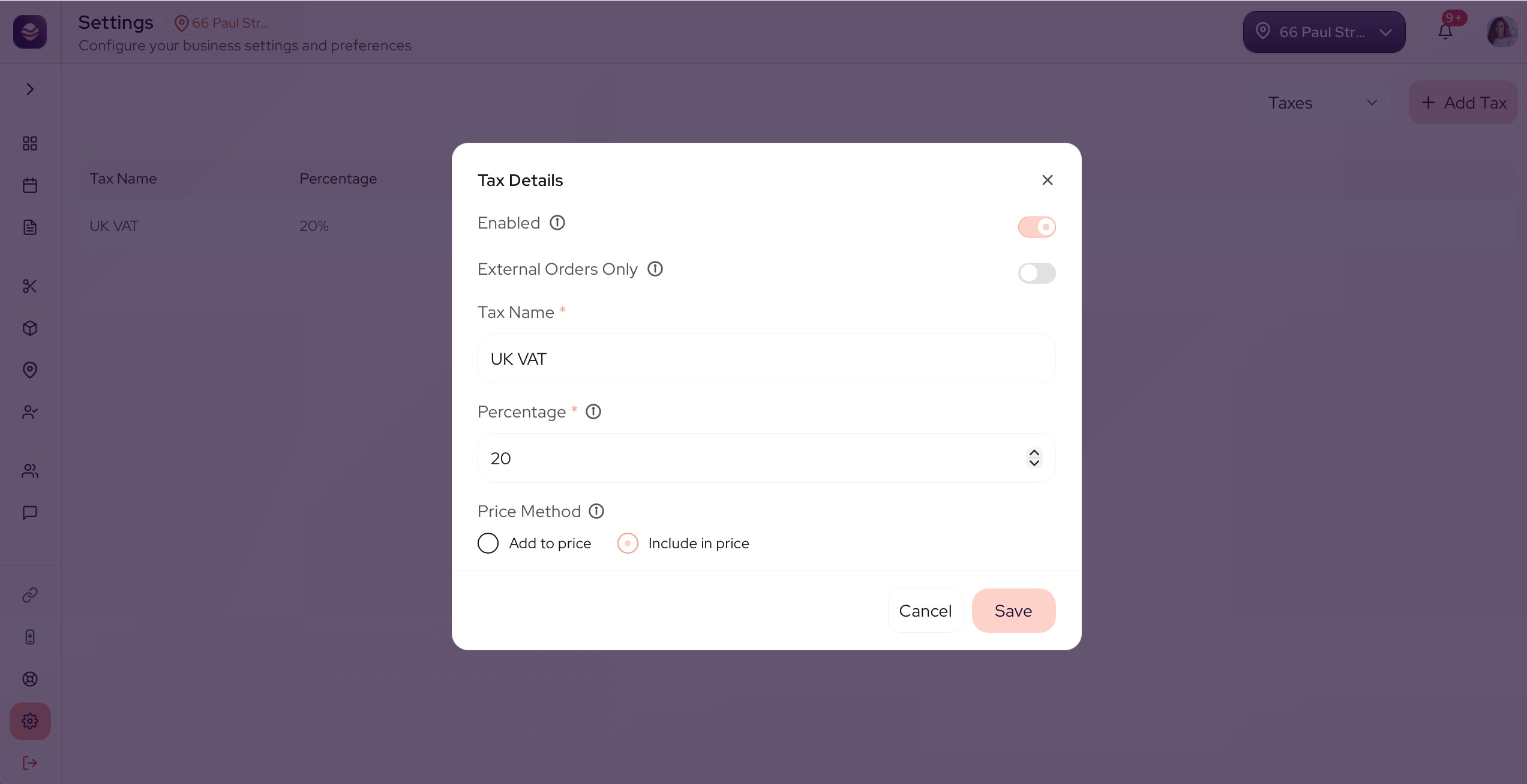
Add a tax
- Go to Settings and open Taxes.
- Select Add Tax.
- Give it a Tax Name, like UK VAT.
- Enter the Percentage, like 20 for 20% VAT.
- Choose a Price Method (see below).
- Save the tax.
You can add as many taxes as your salon needs, each with its own name and rate.
Add to price or include in price
The Price Method decides how a tax sits on your prices:
- Add to price puts the tax on top. A service priced at 100 with 20% tax comes to 120.
- Include in price means the tax is already inside the price. A service priced at 100 already includes the tax.
Pick the one that matches how you show prices to your clients.
Other options
- External orders only applies the tax to online bookings only, not to in-person sales.
- Enabled turns a tax on or off. Turning a tax off stops it applying to new appointments, products and services, but it still applies to appointments already booked.
Updated 21 days ago
Did this page help you?