
Set a schedule
Working hours and time off for each person
Each team member has their own schedule, so clients can only book them when they actually work. The schedule is the Availability step of the same wizard you use to add a team member, so you can set it as you add someone, or any time after by opening them again.
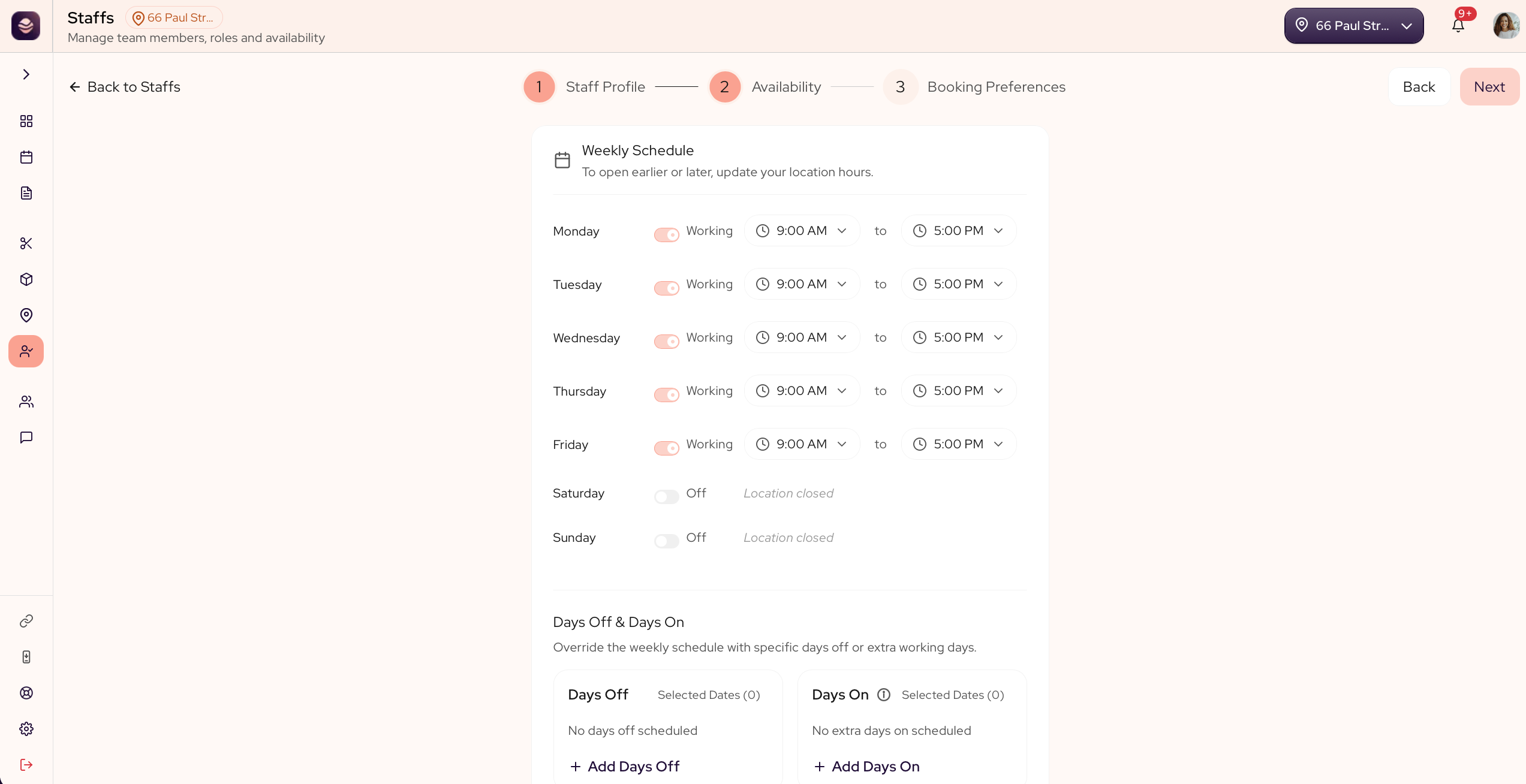
Set working hours
- Go to Staff and open a team member, or add a new one.
- In the wizard, go to the Availability step.
- Set the hours they work each day.
- Save your changes.
Hours stay within your location
A team member can only work while their location is open. Their hours sit inside the location's opening times, so the picker offers only times the location is open, and any day the location is closed is greyed out.
Want someone to start earlier or finish later than the location allows? Change the location's opening hours first in Settings > Locations, then widen the team member's schedule.
This keeps your booking page honest. A client is never offered a time before you open or after you close, even if a team member's hours were set wider in the past.
Add time off
Block out holidays, breaks or any time a team member is away, so no one can book them then.
Updated 21 days ago