
Add a style
The ways a service is done, each with its own price and time
A style is a way a service is done. A braids service might offer Knotless, Box or Feed-in, each with its own price and time. Styles are where your menu gets specific.
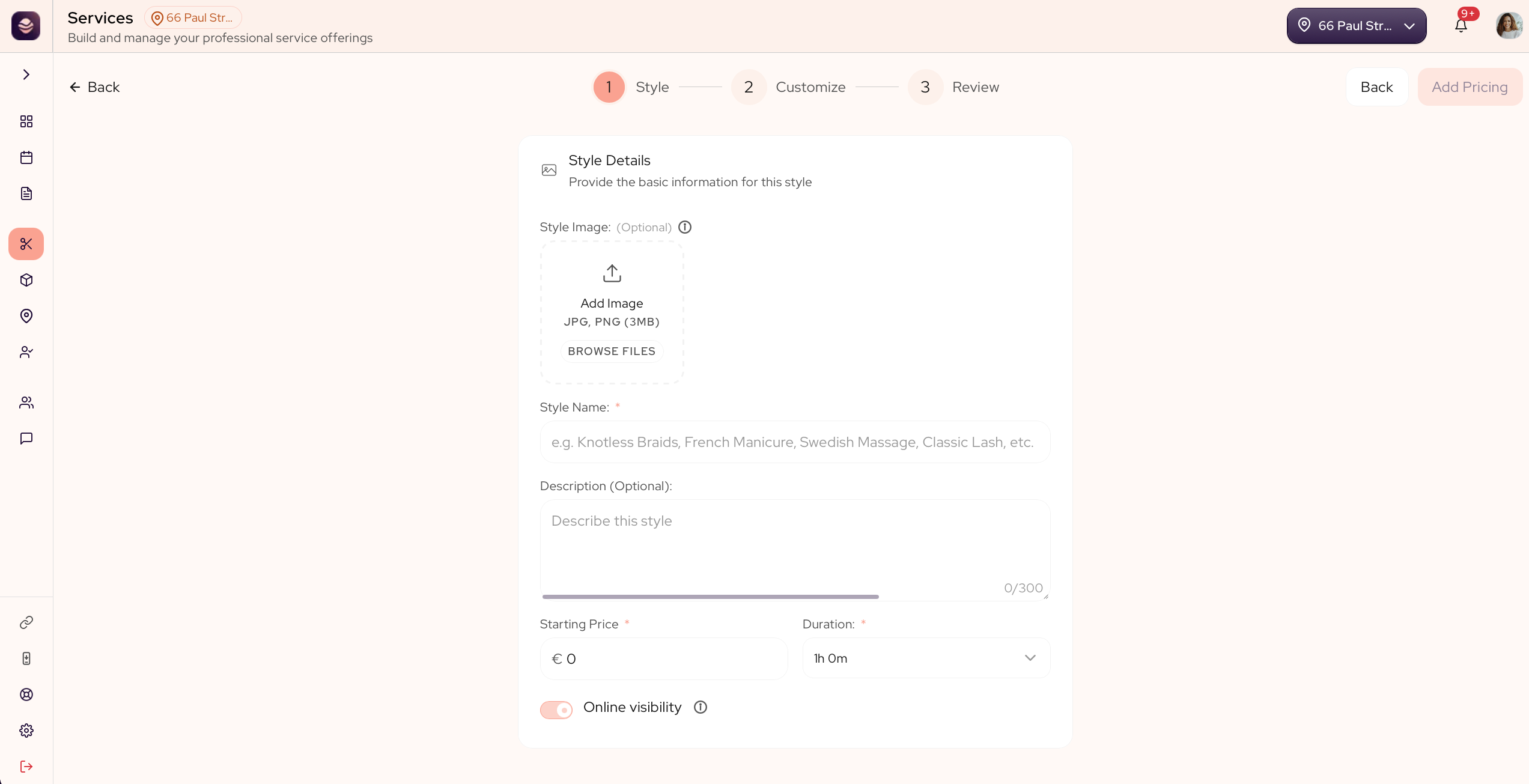
Add a style
- Open the service you want to add a style to.
- Select Add Style.
- Give it a style name, like Knotless Braids.
- Set a base price and a duration.
- Add a photo so clients can see the look.
- Add a short description if it helps.
- Save the style.
Once a style is saved, you can add variants to it, like size or length, so the price fits each client. See Add variants.
When the price comes from variants
The base price and duration are the starting point, and every variant adds to them. So set the base to what the style costs and takes before any choices.
If a style has no fixed starting price, and its whole price and time come from the variants, like length or size, set the base price and duration to zero and put the amounts on each variant instead. The client's choices then build the full price and time on their own.
Updated 21 days ago