
Add a location
Set up a new salon in two steps
Adding a location takes two steps. You fill in its profile, then set its opening hours. Each location you add comes with its own booking page and its own dashboard.
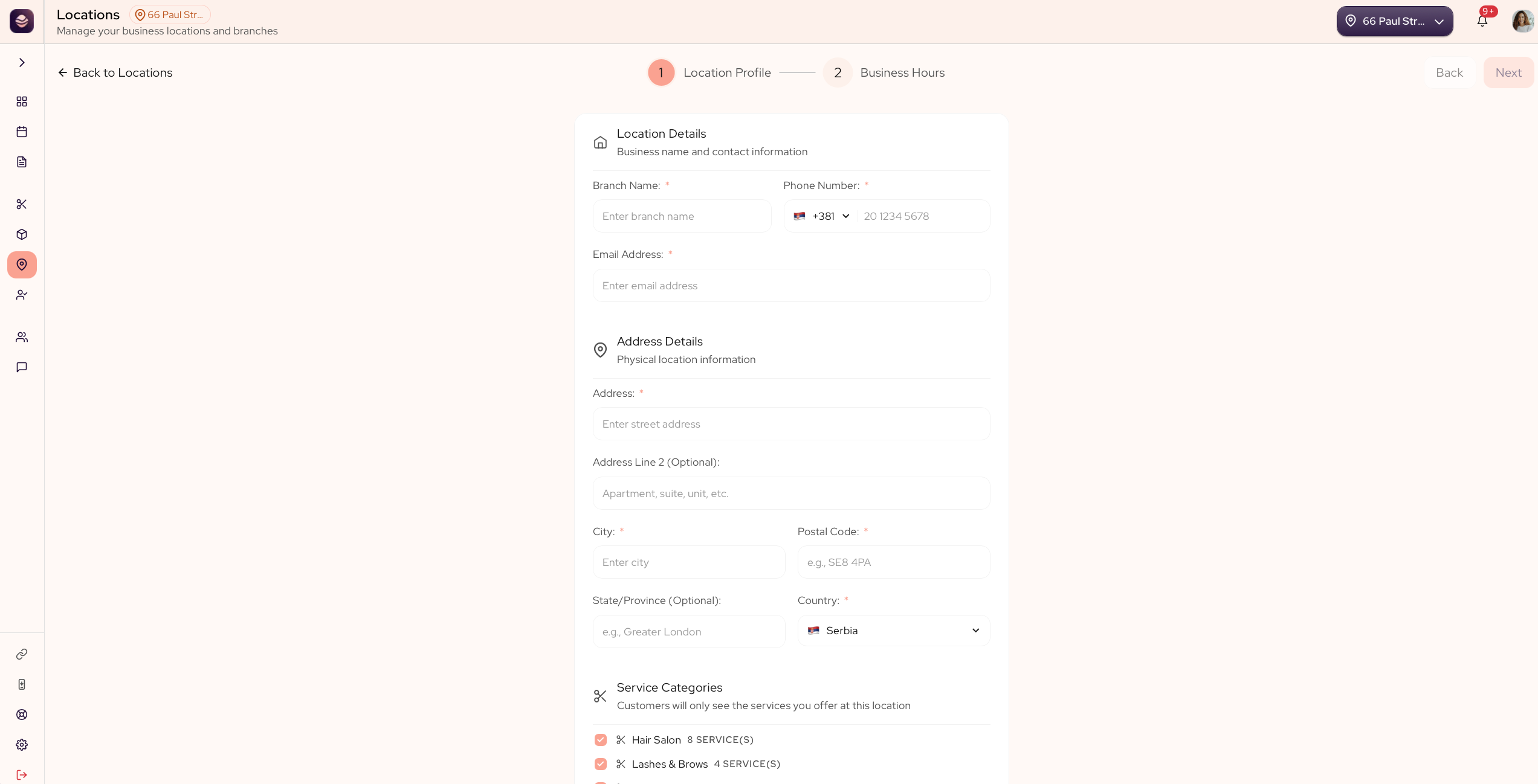
Add a location
- Go to Locations.
- Select Add Location.
- Location Profile: enter the branch name, phone, email and address. Name, phone, email, street address, city, postal code and country are required. Address Line 2 and State or Province are optional.
- Business Hours: set the opening hours for each day, so clients see when this location is open.
- Save the location.
The new location is ready, with its own booking page and its own dashboard.
Choose what each location offers
When you run more than one location, the Location Profile step also shows your Service Categories. Tick the ones this branch offers, and clients booking there see only those services.
Leave every category ticked and the branch offers your whole menu, including any category you add later.
Updated 21 days ago
Did this page help you?