
Staff notification
Keep your team in the loop on their own appointments
Your team hears about their own appointments without watching the calendar. A stylist gets a reminder before their next client, and a note when a booking comes in, moves or cancels. These can reach them by email, by a notification on their phone, or both.
In this article
- What your team can be told
- Set the default for your salon
- Let each person choose their own
- Turn on notifications on a phone
What your team can be told
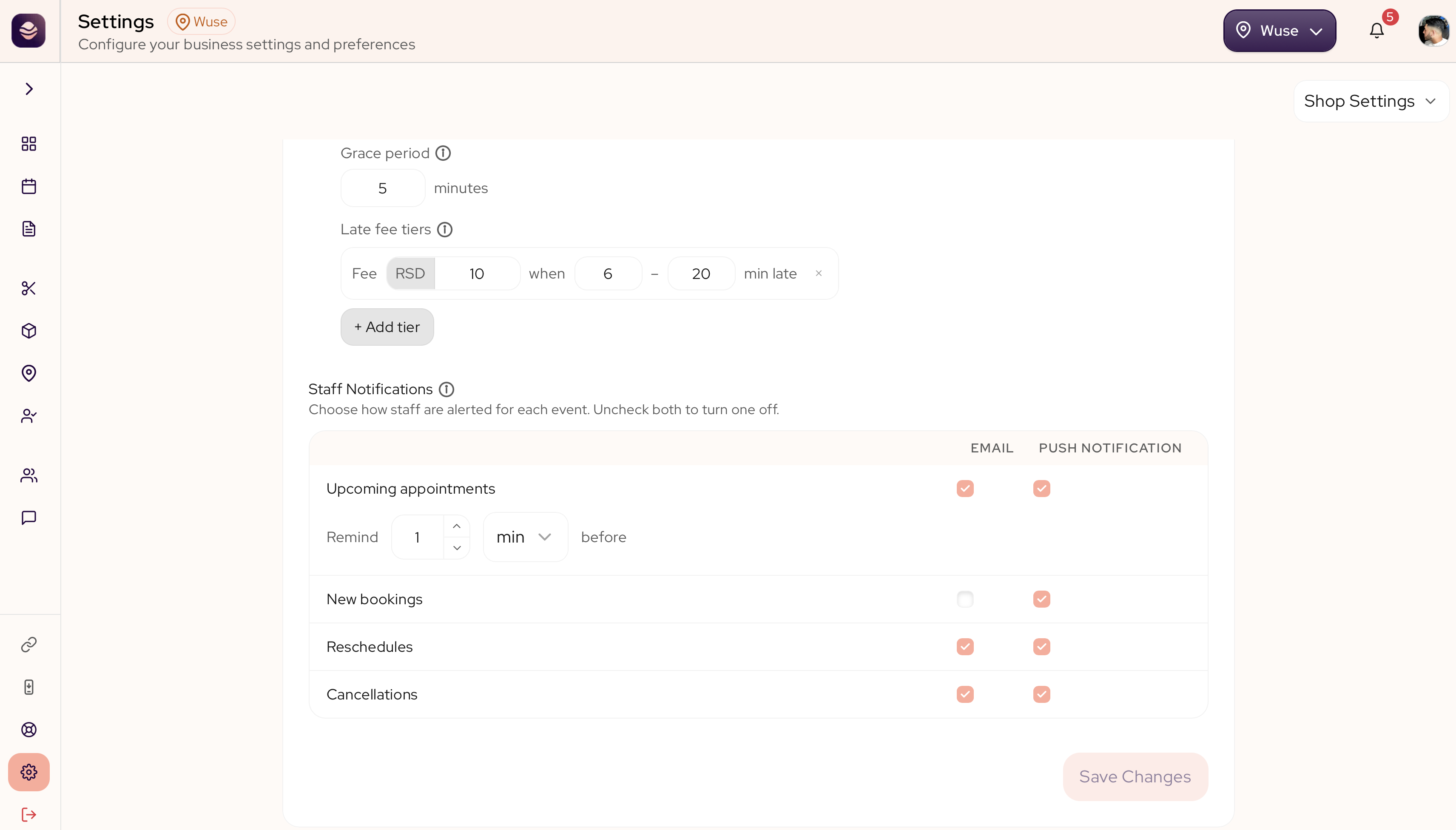
You choose which of these reach the assigned team member, and how:
- Upcoming appointments. A reminder a set time before the appointment starts.
- New bookings. A note when a client books with them.
- Reschedules. A note when one of their bookings moves.
- Cancellations. A note when one of their bookings is called off.
Each one can go out by email, by push (a notification on the phone) or both. Clear both boxes on a row to turn that alert off.
Set the default for your salon
This is the starting point for everyone on your team.
- Go to Settings, then Shop Settings.
- Open Booking Preferences and find Staff Notifications.
- On each row, tick Email, Push or both.
- For Upcoming appointments, set how long before the appointment the reminder goes out.
- Save your changes.
Your whole team follows this until someone sets their own.
Let each person choose their own
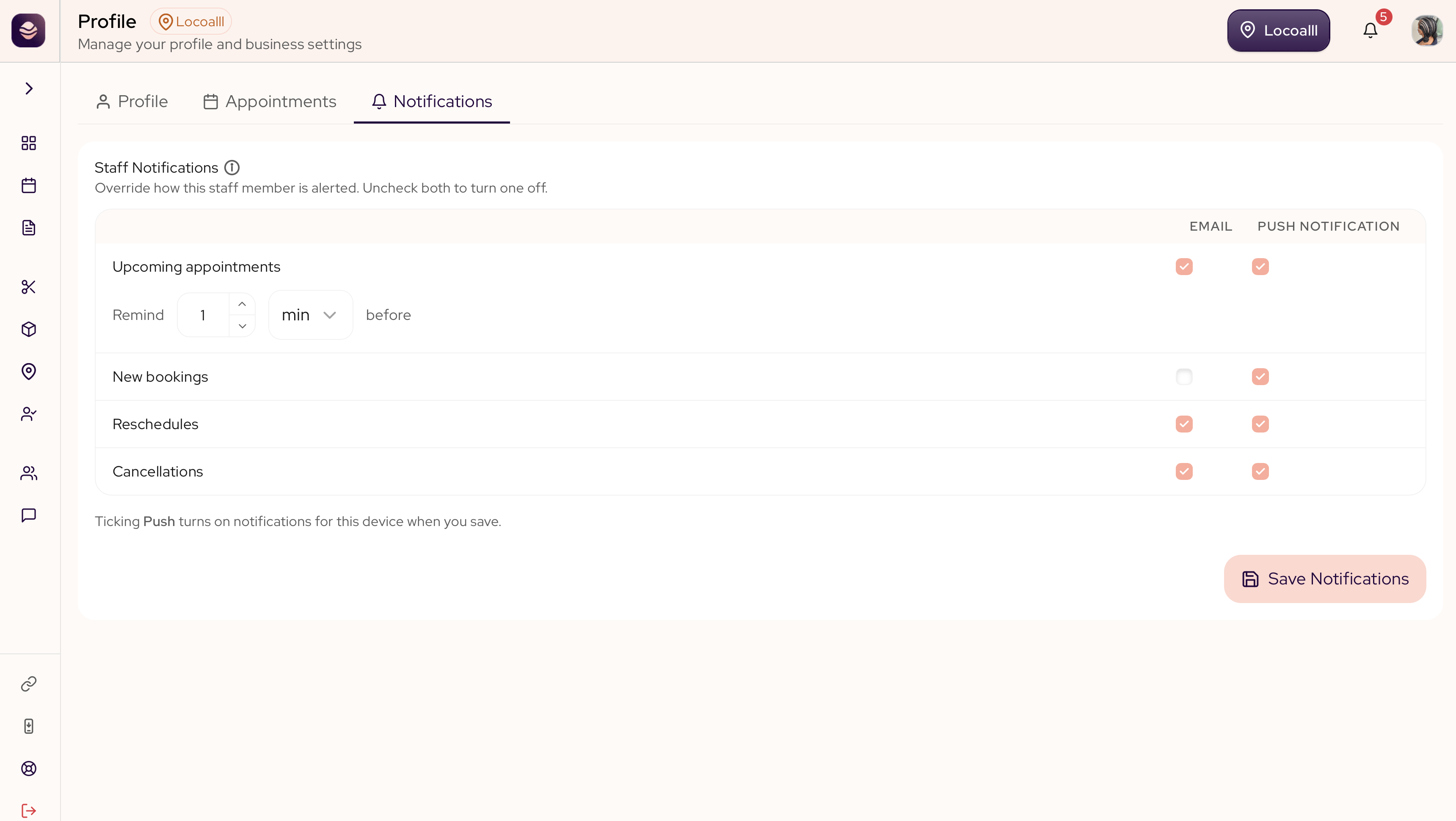
Anyone on your team can set their own notifications from their profile, and theirs apply to them alone. This never changes the salon default or anyone else.
- Open your Profile from the top corner.
- Go to the Notifications tab.
- Set your reminder time, then tick Email or Push on each row.
- Save your notifications.
Turn on notifications on a phone
Push reaches a phone once SalonGrid is on its home screen and the phone has said yes to notifications. To turn it on, tick Push on the rows you want in your profile, then save. Your phone asks to allow notifications, and once you accept this device is set. On an iPhone, add SalonGrid to your home screen first. See Get the App.
Updated 21 days ago