
Add a custom charge
Charge for something that is not on your menu
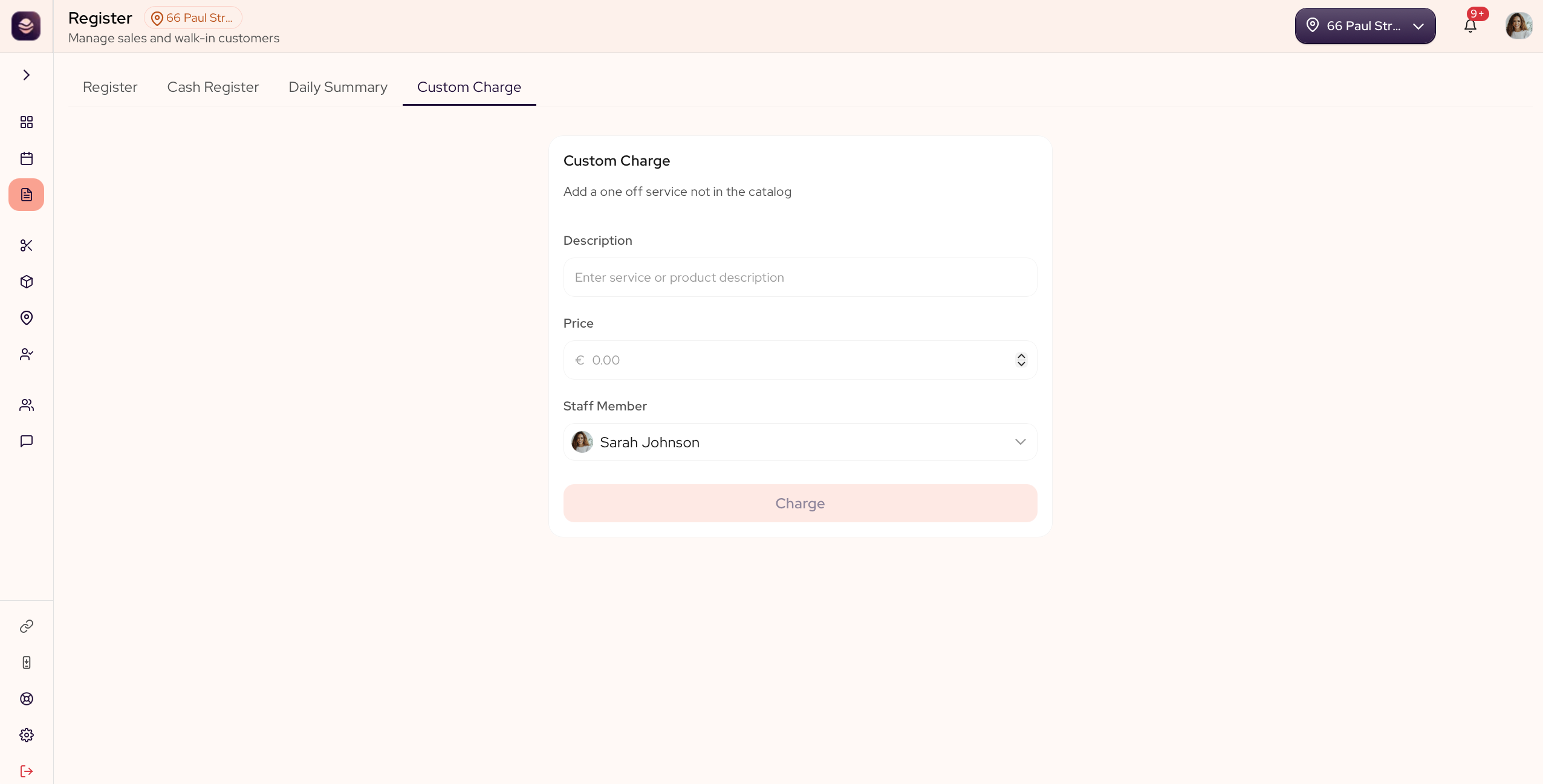
Now and then a client pays for something your menu does not list. A custom charge lets you ring it up without adding it to your catalog.
In this article
- Add a custom charge
Add a custom charge
- In the Register, open the Custom Charge tab.
- Give the charge a name, so it reads clearly on the receipt and in your records.
- Enter the amount.
- Add it to the cart.
- Take payment as normal.
Tip: Use a custom charge for one-offs only. If you sell something often, add it as a service or a product so it shows up in your reports.
Updated 3 months ago
Did this page help you?