
Set booking rules
Give one person different rules from the salon
Most of your team can share your salon's booking rules. When someone needs different rules, like more notice before a booking, you can set rules just for them, and theirs override the salon's for that one person. This is the Booking Preferences step of the same wizard you use to add a team member, so you can set it as you add someone, or any time after by opening them again.
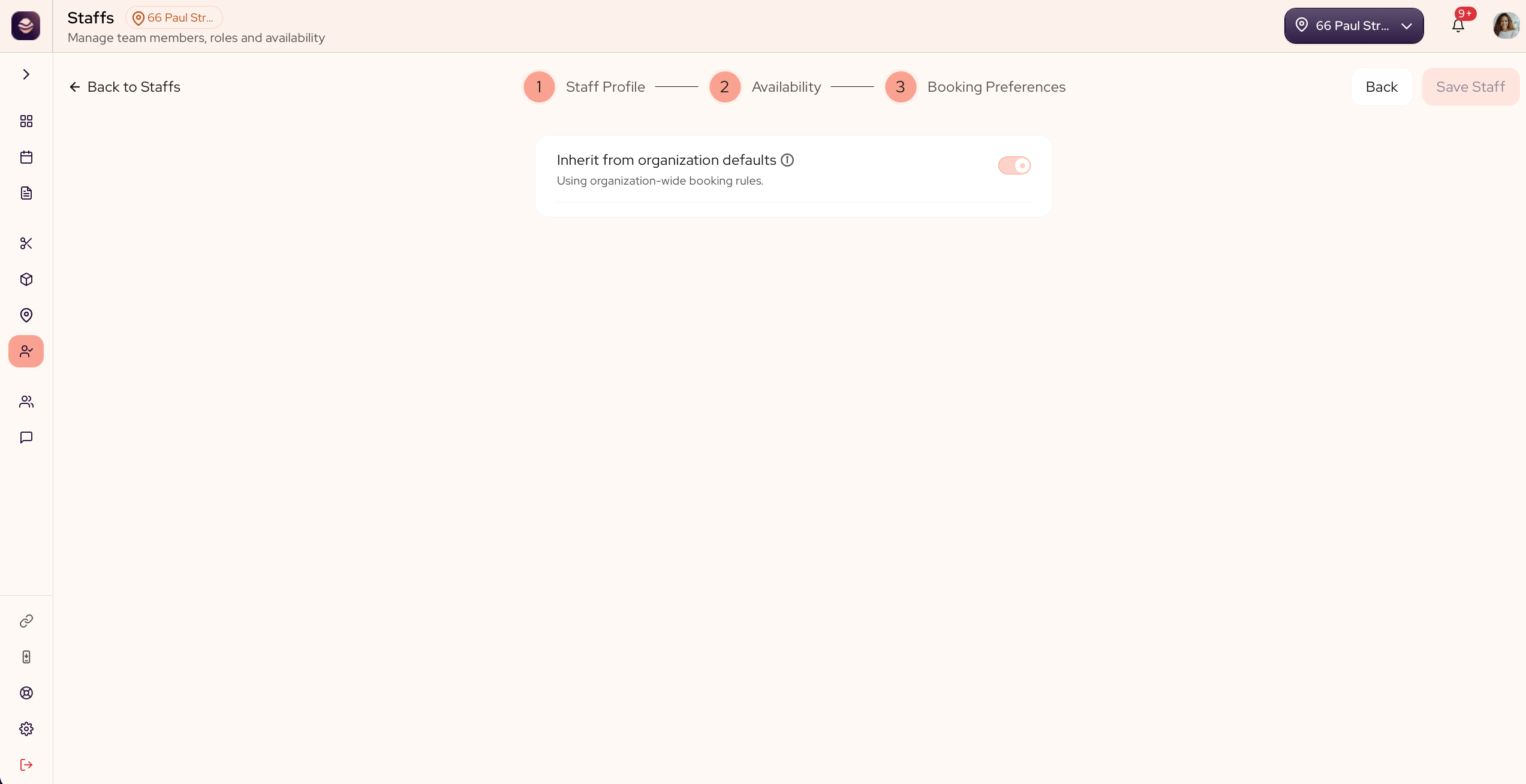
Set rules for one person
- Go to Staff and open a team member, or add a new one.
- In the wizard, go to the Booking Preferences step.
- Use the Inherit from organization defaults toggle:
- Leave it on to follow your salon-wide booking rules.
- Turn it off to set custom rules for this person.
- With the toggle off, set their own notice, gaps and limits.
- Save your changes.
Updated 21 days ago
Did this page help you?