
Reassign a sale
Move a sale to the team member who earned it
Sometimes a sale is rung up under the wrong name, like when one person covers the till for another. Reassigning moves the sale to the team member who did the work, so everyone's numbers stay true.
In this article
- Reassign a sale
Reassign a sale
- Open the Register and go to the Daily Summary tab.
- Select the sale you want to move.
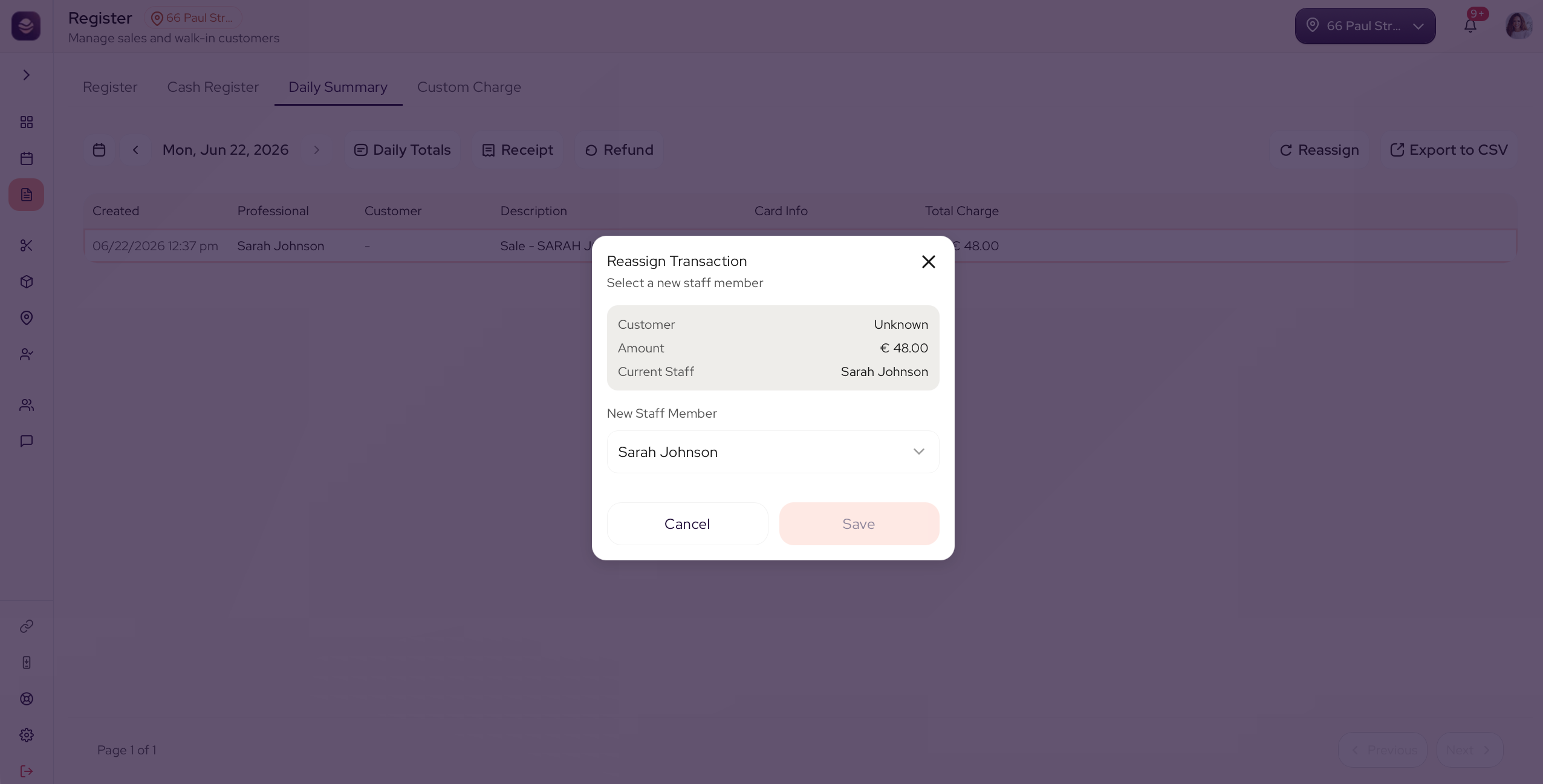
- Choose Reassign.
- The window shows the client, the amount and the current team member. Pick the new team member.
- Save.
The sale now counts towards the right person in your numbers.
Note: You can only reassign a sale to a team member at the same location, since the sale belongs to that location's drawer.
Updated 3 months ago
Did this page help you?