
Block off time
Hold a slot so no one can book it.
Sometimes a slot needs to stay empty, for a break, a holiday or admin time. Blocking it off keeps clients from booking it, while the rest of your day stays open.
In this article
- Block off time
- Change or remove a block
Block off time
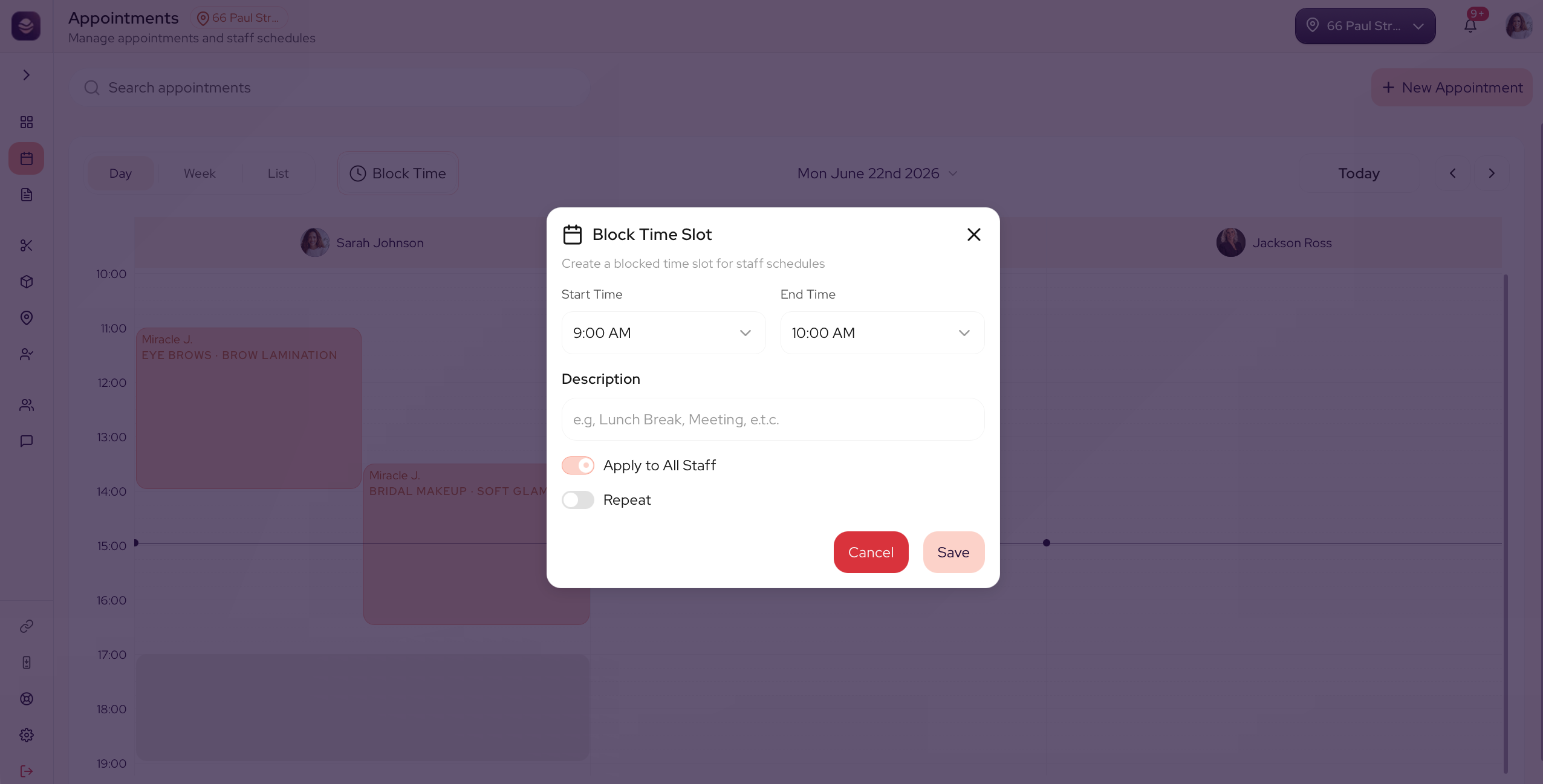
- On the calendar, select Block Time.
- Choose the staff member the block is for.
- Set the date and the time range.
- Add a reason so your team knows what it is for.
- Save the block.
The slot now shows as blocked, and clients cannot book it online.
Change or remove a block
Open a blocked slot to change its time, or remove it when the time frees up.
Tip: Use blocked time for anything that is not a client, so your real availability stays honest.
Updated 3 months ago
Did this page help you?